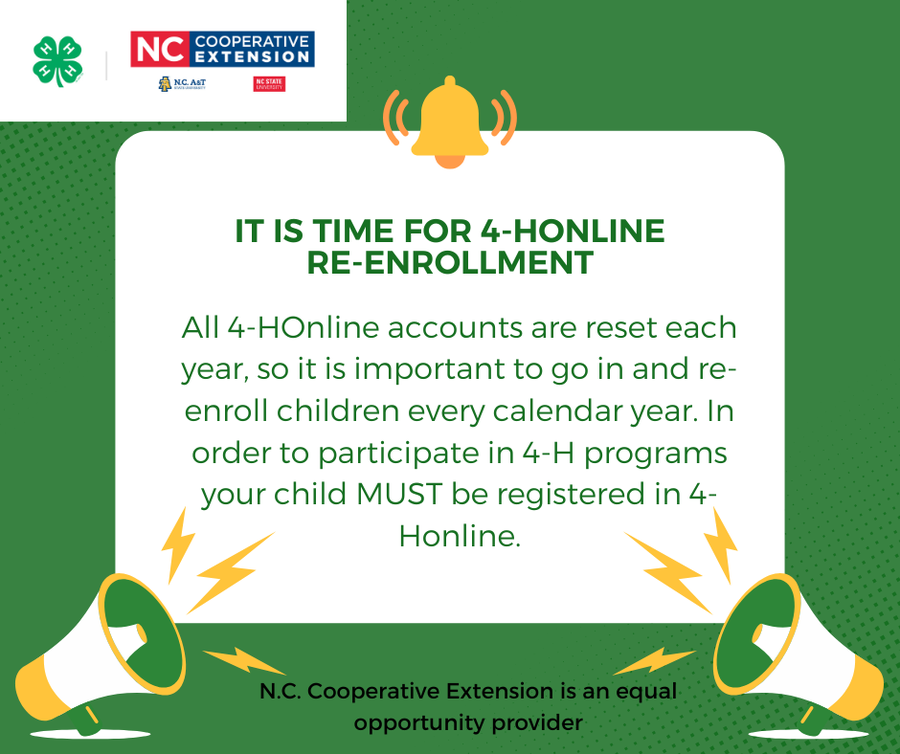
4-HOnline is where all of the necessary forms and paperwork are kept for children to participate in 4-H events.
All 4-HOnline accounts are reset each year, so it is important to go in and re-enroll children every calendar year.
How to re-enroll:
1. Go to 4-H Online
2. Enter in your email address and password if you remember it. You can reset your password if you can’t remember. If you think you may have an account already but do not remember the email address you used to sign up, you can reach out to our 4-H Agent and ask.
3. Click the “Member’s List” tab on the left and then locate the member’s name and click “enroll now”.
4. Select the grade from the drop-down menu.
5. Click the blue “Next” button.
6. Read the screen to confirm the membership type and click the blue “Enroll” button.
7. After reading the instructions for Clubs section, click the blue “Select Clubs” button. If your child is not currently enrolled in a club, select the “Dare Member’s at Large Club”.
8. Once club(s) have been added, click the blue “Next” button.
9. After reading the instructions for the Projects section, click the blue “Select Projects” button.
10. Click the blue “Select” button next to the project to add to the enrollment. Add projects that the youth may be interested in participating in this year.
11. Select the Years In Project from the drop-down menu. The default value is set to 1.
12. Click the blue “Add” button. Repeat the process for each project.
13. Complete the About You, Demographics, Address, Emergency Contact, Parent/Guardian, Second Family, School, Military and Other information.
14. Click the blue “Next” button.
15. Click the blue “Show Health Form” button to display and update/answer all questions and sign where designated.
16. Click the blue “Next” button.
17. Click the blue “Show Consents” button to display and answer all questions and sign where designated.
18. Click the blue “Next” button.
19. Click the green “Submit” button once updates are complete.